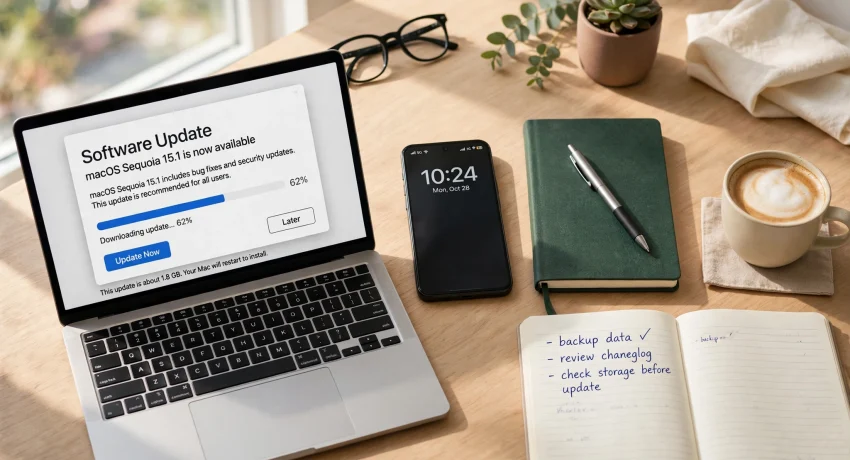
Picture your phone on a Monday morning. It takes a few seconds too long to open your messages, a photo app warns you that storage is almost full, and a little red badge tells you an update has been waiting for three weeks. Nothing is broken, exactly — but everything feels a little slower, a little less reliable, than it did a month ago.
That slow slide is normal. Devices change a little every day: apps update, photos pile up, files quietly multiply. The fix is not a new phone or a complicated clean-up. It is two technology basics, reviewed constantly — software updates and storage. Keep those two in order and most of the everyday friction disappears.
Why Reviewing Two Basics Is Enough
Technology advice often comes as a list of twenty things to check, which is why most people check none of them. Two basics work better because they are the two that cause most everyday problems. Out-of-date software is the most common reason a device behaves strangely or becomes unsafe, and a full drive is the most common reason it slows down.
Reviewing them constantly does not mean checking every day. It means building a short, regular habit — once a month, ten minutes — so small problems never grow into big ones. If you want a wider monthly routine to go with this one, our guide to some technology basics you should review constantly covers files, battery and browser habits too.
Basic 1: Keep Your Software Updated
An update is usually three things at once: fixes for problems you have noticed, fixes for security holes you have not, and small improvements that keep your apps working with each other. Skipping updates does not keep things stable — it leaves you running older code while the rest of the world moves on.
What updates actually protect
Most updates patch security weaknesses. When a weakness becomes public, attackers can use it quickly, and the patch is your defence. This is why the update itself matters more than the new features it brings. A device that is months behind on updates is simply easier to attack than one that is current.
How to check, without making it a chore
On your phone, open your settings and look for the software update section — it usually sits near the top or under “About phone”. Turn on automatic updates where you are offered the choice, and connect to Wi-Fi before a large download so it does not eat your mobile data. On a computer, the same setting lives in your system settings under “Update” or “Software Update”. Set both to update automatically overnight, and the job mostly takes care of itself.
For apps, open your app store and check for pending updates once a month. One or two out-of-date apps rarely matter, but a dozen of them can cause crashes and strange behaviour, especially after your operating system has moved on and the apps have not.
Before a big update
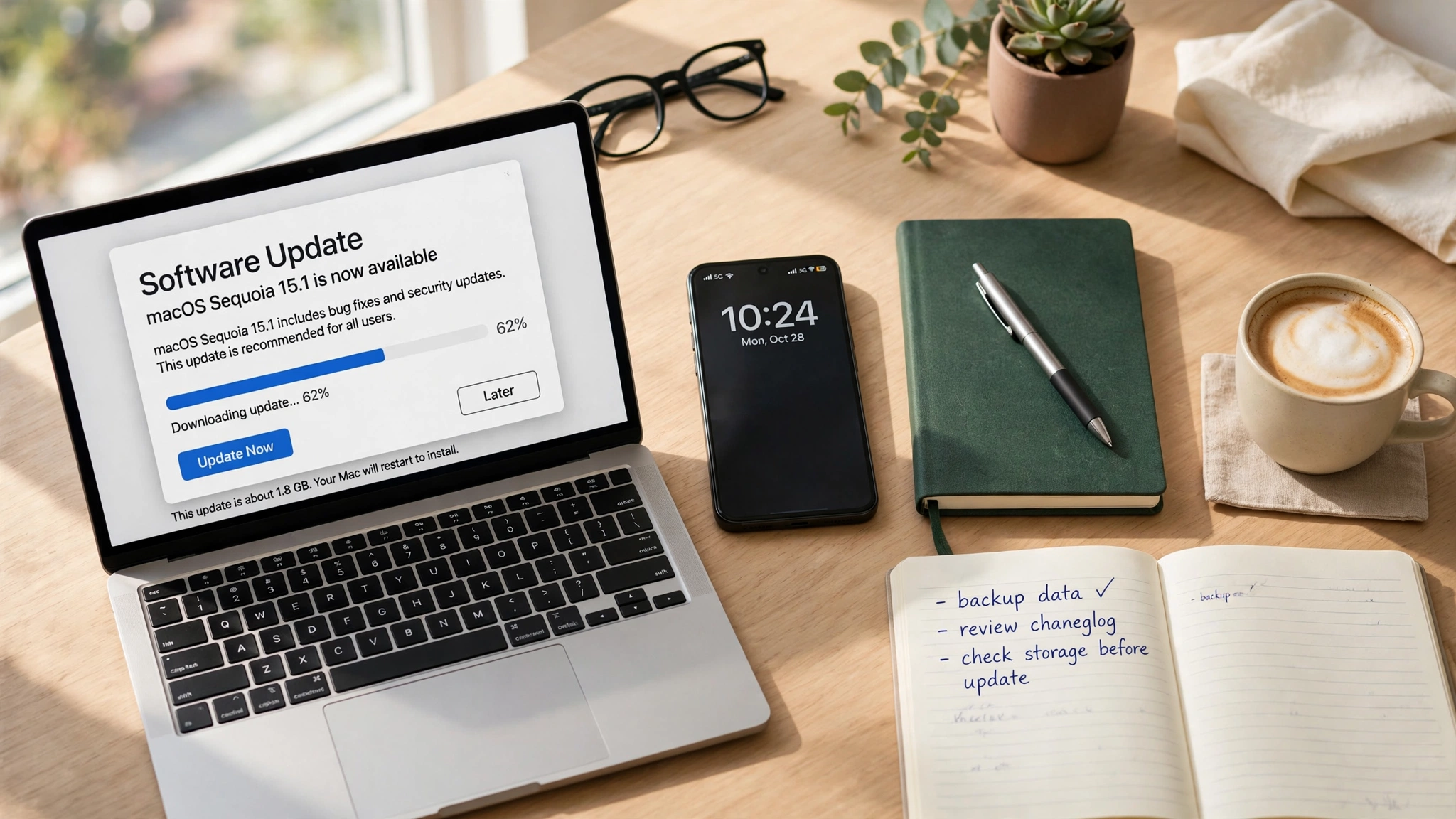
Major version updates — the ones with a new name or number — deserve thirty seconds of preparation. Make sure your battery is charged or the device is plugged in, check that you have some free storage (see the next section), and back up anything you cannot afford to lose. Updates very rarely go wrong, but a backup turns a rare problem into a small inconvenience.
Basic 2: Keep Your Storage Under Control
Storage is the quieter of the two basics, and the one people notice last. Your device needs free space to work: to save photos, to download updates, to keep apps running smoothly. When the drive is nearly full, everything slows down — and the device may refuse to install the very update that would fix it.
Check how much space you actually have
On a phone, your storage breakdown lives in settings, usually under “Storage”. It shows how much space apps, photos, videos and system files take. On a computer, the same view sits in your storage or disk settings. Look at it once a month. If you are below about ten percent free space, it is time for a tidy-up.
Where the space usually goes
Photos and videos are the biggest culprit for most people. A few minutes of video can take more space than a hundred photos. Next come apps you no longer use, downloaded files you have forgotten, and cached data that apps store to load faster. None of these are hard to deal with — they just need a decision.
A simple way to free space
Start with the easy wins. Delete apps you have not opened in months. Move photos and videos to a cloud service or an external drive, then remove the copies from the device. Clear the downloads folder. If an app offers a “clear cache” option, use it — it removes temporary files without deleting your content. For a fuller picture of the everyday basics that go with this, see our technology basics every user should know and review.
One warning: before deleting anything, make sure you have a copy somewhere else. Storage problems are annoying; losing the only copy of your photos is far worse.
A Ten-Minute Monthly Routine
Put the two basics together and you have a routine that takes about ten minutes a month:
- Check for a system update on your phone and computer, and install anything waiting.
- Open your app store and update the apps that are behind.
- Check your storage. If free space is low, delete unused apps and move photos off the device.
- Glance at your backup — is it running, and is it recent?
Do it on the same day each month and it stops feeling like maintenance. It becomes the reason your devices keep working the way they did when they were new.
Mistakes Worth Avoiding
The most common mistake is ignoring updates for months because the phone “works fine”. It does — until the day an app stops working or a security hole is used. The second is deleting photos from the device before checking they are actually backed up. The third is installing a “cleaner” app that promises to speed things up; most do little, and some collect more data than they remove. Your device’s own storage tools are enough.
FAQ: Technology Basics to Review Constantly
How often should I check for updates?
Turn on automatic updates and check manually once a month. That catches anything the automatic setting missed, including app updates that need your approval.
How much free storage should I keep?
About ten percent of your total storage is a sensible minimum. Below that, updates may fail and apps may slow down. If you cannot reach ten percent, it is a sign to move photos and videos off the device.
Will updating slow my old device down?
Occasionally a major update can feel heavier on a very old device, but running years-old software is a worse trade: it leaves security holes open and breaks compatibility with newer apps. Keep updates on, and manage storage to keep things smooth.
Final Thoughts
You do not need to become a technology expert to keep your devices healthy. Two basics, reviewed constantly, cover most of what can go wrong: keep your software updated, and keep your storage under control. Ten minutes a month is all it takes — and it is the difference between a device that quietly does its job and one that slowly grinds you down.